dotfiles 入門
Date: 2020-04-15
Speaker: Hiroshi Nishigami (hnishi)

近況
HHKB (Happy Hacking Keyboard)
を買いました。 

はじめに
最近(去年12月頃⛄️)、 自分の dotfiles を整理した ため、共有しようと思いました。
(+ 3 ヶ月くらい使ってみた感想)
対象
ターミナル (CLI) 初学者向け。
実は整理してる人少ないのではないかとおもっていたのですが、
もし「そんなの当たり前」レベルの話でしたら申し訳ありません。
作業効率化的な要素が強い話です。
dotfiles とは
- unix-like systems における設定ファイルのこと。
- ファイル名がドット . から始まることに由来。
dotfiles の例
- .bash_profile
- .bashrc
- .zshrc
- .asdfrc
- .gitconfig
- .vimrc
Catalina からデフォルトシェルが bash 👉 zsh に変わった
- Mojave では Bash 3.2 (GNU Bash) (2007年から)
- なお、bash の開発は active で現在 version 5.0
- 新しい bash のライセンスは GPLv3
- GPLv3 の制限が厳しい(独自ソフトでの使用禁止、特許絡みの問題)
- ちなみに、zsh は MIT License
https://thenextweb.com/dd/2019/06/04/why-does-macos-catalina-use-zsh-instead-of-bash-licensing/
dotfiles が解決してくれること
「環境構築で消耗していませんか?」
dotfilesを極めることで、どこで作業していても自分の環境を瞬時にサクっと作り出すことができる
特におすすめな人
まぁつまり全エンジニアが対象だ!!!
Ref: ようこそdotfilesの世界へ
管理手法が非常に多岐にわたっている
ちょっと検索しただけでも、プログラマーごとに色が出過ぎている。
たとえば
私の dotfiles 戦略
- 最小構成のサーバーに対しても、すぐにdotfilesを展開できる
- Mac, Linux (主に ubuntu), Windows (mintty) に対応
方針
- できるだけシンプルな構成にする
- bash 依存のみ
成果物
https://github.com/hnishi/dotfiles
Please forgive me for the messy.
工夫
ワンラインのコマンド一発で、ダウンロードとインストールを行えるようにしました
ベース
bash だけで展開できる最小構成の dotfiles レポジトリ を参考にさせてもらいました。
使い方
curl -L raw.githubusercontent.com/hnishi/dotfiles/master/scripts/download.sh | bash
git がある場合
    if is_exists "git"; then
    # --recursive equals to ...
    # git submodule init
    # git submodule update
    git clone --recursive "$DOTFILES_GITHUB" "$DOTPATH"
curl がある場合
    elif is_exists "curl" || is_exists "wget"; then
    # curl or wget
    local tarball="https://github.com/hnishi/dotfiles/archive/master.tar.gz"
    if is_exists "curl"; then
    curl -L "$tarball"
wget がある場合
    elif is_exists "wget"; then
    wget -O - "$tarball"

    fi | tar xvz
    if [ ! -d dotfiles-master ]; then
    log_fail "dotfiles-master: not found"
    exit 1
    fi
    command mv -f dotfiles-master "$DOTPATH"
dotfiles をインストールする仕組み
レポジトリに存在する . (ドット) から始まるファイル or ディレクトリに関して、
既存ファイルのバックアップを取って、ホームディレクトリにシンボリックリンクを貼る
    if [[ "$HOME" != "$dotdir" ]];then
    for f in $dotdir/.??*; do
      [[ `basename $f` == ".git" ]] && continue
      if [[ -L "$HOME/`basename $f`" ]];then
        command rm -f "$HOME/`basename $f`"
      fi
      if [[ -e "$HOME/`basename $f`" ]];then
        command mv --backup=numbered "$HOME/`basename $f`" "$HOME/.gdotbackup"
      fi
      command ln -snf $f $HOME
    done
TIPS
mv の --backup=numbered オプションをつければ、番号を振ってバックアップしてくれます。
私は最近知りました。
クロスプラットフォーム対応
$ ls -a ~/.bashrc*
/Users/hnishi/.bashrc
/Users/hnishi/.bashrc_local
/Users/hnishi/.bashrc_linux
/Users/hnishi/.bashrc_mac
bash 設定の読み込みの流れ
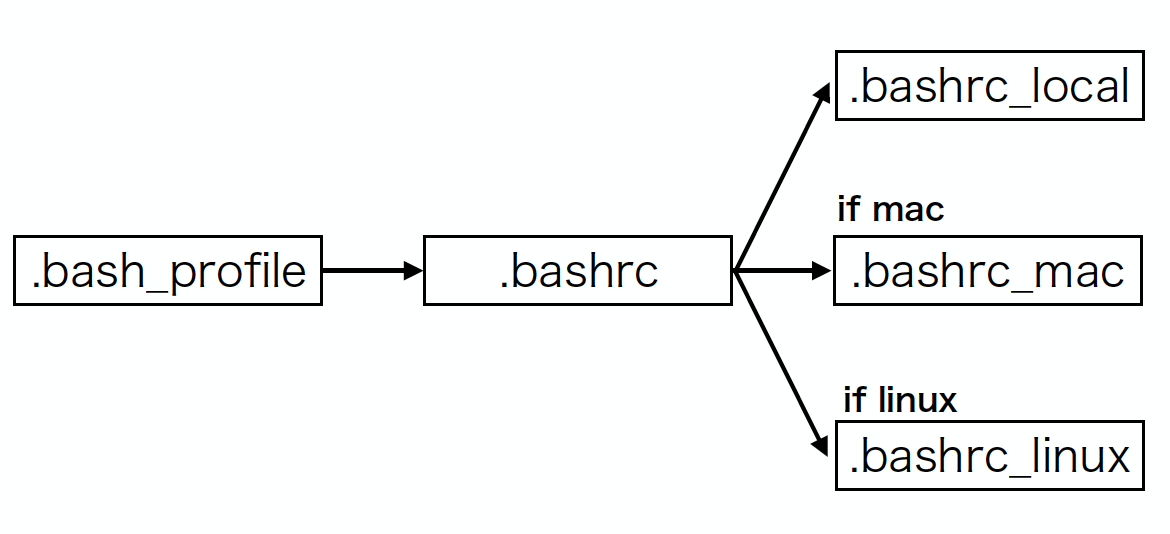
.bash_profile と .bashrc の違い
- bashは、「ログインシェル」として起動すると~/.bash_profileを読み込む。
- シェルがログインシェルではない形で起動する場合は、~/.bash_profileを読み込まない。
- bashを対話的シェル(=スクリプト実行用ではないということ)として起動するときは、~/.bashrcを読み込む。
プロンプトのカスタマイズ
- あまりイケてない
- Gitのブランチ名、ステータスとコマンドの戻り値による色付け、実行時間、現在時刻など
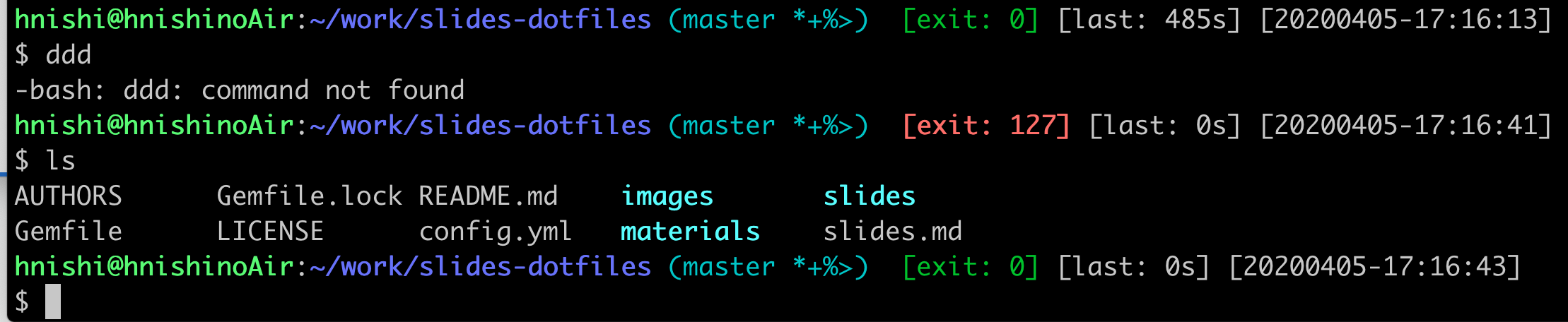
プロンプトのカスタマイズ
bash だと PROMPT_COMMAND に関数を指定すると、プロンプト表示時に実行される。
dispatch () {
  local EXIT_STATUS="$?" # 直前のコマンド実行結果のエラーコードを保存
  timer_stop # 直前のコマンドの処理時間を図るためのタイマー(関数)
  get_datetime # 現在時刻を取得する関数

  local status_color="" # exit status によって色を変える
  if [ $EXIT_STATUS != 0 ]; then
    status_color=$PALE_RED
  else
    status_color=$DARK_GREEN
  fi
  export PS1="${GREEN}${PS1_USER}${WHITE}:${PALE_BLUE}\w${CYAN}$(__git_ps1) ${status_color} [exit: \$?] ${WHITE}[last: ${timer_show}s] [${prompt_datetime}]\n\$ "
}
export PROMPT_COMMAND=dispatch
結果
bash + {git,curl,wget}
があれば即座にインストールできます
bash だけでも TCP 通信ができるらしい
もしかすると、curl も使わなくてもいいのかもしれませんが、これは試してないです。
exec 3<>/dev/tcp/www.google.com/80
echo -e "GET / HTTP/1.1\r\nhost: http://www.google.com\r\nConnection: close\r\n\r\n" >&3
cat <&3
https://www.linuxjournal.com/content/more-using-bashs-built-devtcp-file-tcpip
使いやすいように template を作成しました
以下にあるコードをコピーすると、レポジトリに dotfiles を配置するだけで使えます
(bashのみ対応)。
https://github.com/hnishi/dotfiles/releases/tag/minimal-template-v0
まとめ
- dotfiles は育てていく感覚があって楽しい
- 他の環境への設定の同期が楽
- docker 作業時、リモートサーバー作業時に便利
- ハードウェアの引っ越しに身軽になれる
References
もっと高度な内容を知りたい方は、以下のリンクを参考にしてみて下さい。
(個人的にわかりやすかった記事)
おまけ
yash
いろいろと調べていると弊社にいる magicant さんが yash なるPOSIX準拠のシェルを開発していることを知りました。
あらためて ACCESS にはすごい技術者がいるものだと再認識しました。
VS Code
(PC ごとの path 等が設定ファイルに入ってくるので結構面倒)
Visual Studio Code が公式の設定ファイル同期ツールを発表
(現在 preview 版のみ)
まだ使ったことはないですが、期待。
マイクロソフトアカウントへの sign in が必要みたい。
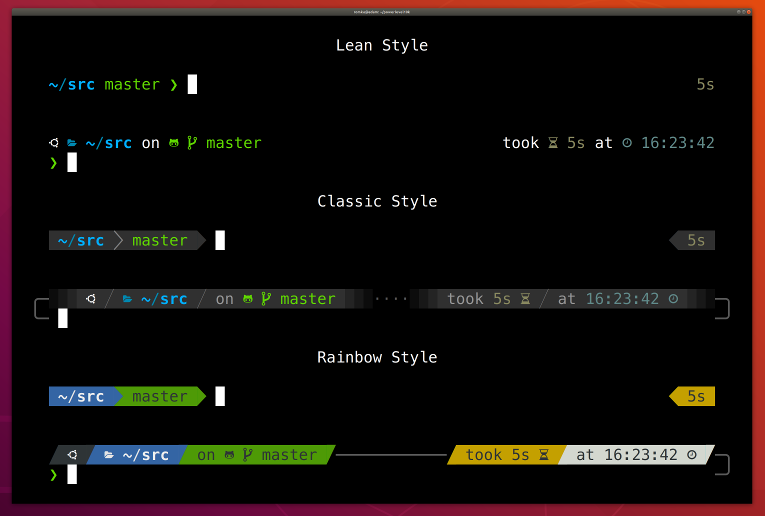
おすすめの Theme
簡単に、プロンプトを設定
-
starship
- bash fish, zsh, powershell, Ion に対応
-
powerlevel10k
- zsh のみ対応
-
pure
- zsh
- Go実装版 (クロスプラットフォーム): mimir
starship
powerlevel10k
pure
